Last post, I said I'd talk about goals, but I'm going to put that on hold for a second. More than tracking your goals, you should ensure that the data coming into your reports is accurate. And as such, you should be excluding internal traffic (that's you!) from your Google Analytics reports. There are two ways to do it. Which way you pick mostly depends on whether you have a static IP (the same IP everytime you go online) or a dynamic IP. If you know which you have, skip the next paragraph.
If you are doing this from an office, you have a good chance that it is static. If you are doing this from home, you likely have dynamic. You can ask your ISP what you have. Also ask if there is a range of static IP addresses, which is common for offices. You'll need the actual range for the next part.
(Alternatively, you can go to
whatsmyip.org and see what your IP address is, then disconnect from the internet for a while and reconnect, checking the site again. Although there is a chance you'll get the same number with a dynamic IP. I'd check with my ISP to be sure)
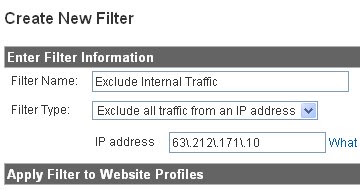
The first way: Okay! Let's keep ourselves from showing up in our Analytics reports. If you have a static IP, it is easily done using the "Exclude All Traffic from an IP Address" filter. After you log-in, you can find the Filters menu in the bottom right. Name your filter something like "Exclude Internal Traffic", and select "Exclude All Traffic from an IP Address" from the drop-down.
Now you'll have to put your IP address in there. If your IP address is 63.212.171.10, you'll have to put in 63\.212\.171\.10
For those of you with a range of IP address, you can use Google's IP range
calcuator. As they mention if you have 2 ranges, it's likely you'll have to put them in the calculator separately. In the filter, you'll put in something like this
^First_IP_Range$|^Second_IP_Range$
Of course, substitute the ranges the calculator gives you, but remember to keep the ^, $, and | symbols as shown above. Now just add your site profile, and you are all set!
The Second Way (credit is due to the guys over at
ROI Revolution for this one): This is a lot easier than the first way, but it admittedly does not work as well. We are going to do this by filtering out by URL and manual tagging.
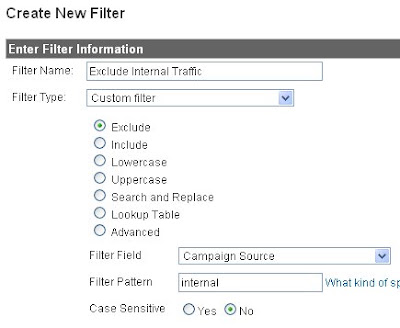
First, go to the filters page and pick a custom filter. Select the "Exclude" button. Then, in the filter field drop-down, pick campaign source. Third, for filter pattern, pick "internal". You are done! That was easy huh? But from now on, you are going to have to go the URL "http://www.example.com/?utm_source=internal&utm_medium=internal&utm_campaign=internal". Be sure to bookmark it and urge everyone you want to exclude do the same!
If you click on a link to your page from a Google search or a referring site, you will
not be exclude from your reports.
Some of you that have done some research will know that Google has a second (or third in this case) of doing this. It uses the SetVar function, and while this works really well, the SetVar cookie is really valuable and I'd prefer to save it for something else. However, excluding internal traffic is essential, so use Google's SetVar method if you can't do the above. You want your reports to be accurate! I hoped this helped! Questions on implementation? Leave it in the comments.
BLam


 Posts
Posts

